
Hinglish voice typing on a laptop (Mac and Windows)
Speak Hindi and English mixed together on your Mac or Windows laptop and get clean, polished text in any app. Here's how Hinglish voice typing works.
Yes, you can do Hinglish voice typing on a laptop. Most voice typing tools expect you to pick one language and stay in it, and many are built for phones. BolWise runs on Mac and Windows, lets you speak Hindi and English mixed in the same sentence, and pastes clean, polished text wherever your cursor is.
This guide explains why mixed speech trips up most tools, what to look for, and how to set it up.
What is Hinglish voice typing?
Hinglish is how many of us actually talk: Hindi and English in the same sentence, sometimes the same phrase. "Kal ki meeting postpone kar do, client ne bola woh Friday ko available hai." Nobody thinks of that as two languages. It's just talking.
Hinglish voice typing means speaking like that into your computer and getting usable text out. "Usable" can mean a few different things:
- Clean English, ready to send in a work email.
- Hindi in Devanagari, for a message to family or a Hindi document.
- Exactly what you said, Hinglish as spoken, for notes or chat.
A good tool should let you choose.
Why does voice typing on a laptop struggle with Hindi-English mixed speech?
There are a few common reasons:
- You have to pick a language first. Built-in dictation on most computers asks you to set one language. Speak English words while it's set to Hindi (or the other way round) and you get odd spellings or missing words.
- Many tools are phone-first. Google's voice typing on Android keyboards is good, but on a laptop you're often left with browser-only options that only work inside one website.
- Raw transcripts need cleanup. Even when the words are right, you get filler words, no punctuation and run-on sentences. Then you spend time fixing it, which defeats the point.
How does BolWise handle Hinglish voice typing?
BolWise is a desktop app for macOS 13+ and Windows 10/11. Here's how it works:
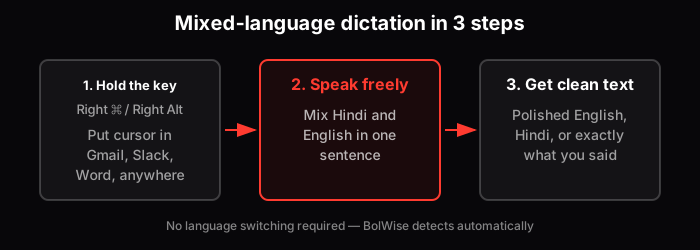
Mixed-language dictation in three simple steps — no language switching required
- Put your cursor anywhere: Gmail, Outlook, WhatsApp Desktop, Slack, Word, Google Docs, a CRM.
- Hold the key and speak. Mix Hindi and English however you naturally would.
- Let go. BolWise detects the languages automatically, cleans up the text and pastes it at your cursor. This usually takes a few seconds.
BolWise supports 99+ languages, so the same works for other mixes too: Tamil and English, Marathi and English, Bengali and English, Spanish and English.
Can I speak Hinglish and get proper English text?
Yes, and this is where most people find the real value. A lot of us think faster in Hindi or Hinglish but need to write in English at work.
In BolWise, each Mode (a saved writing style) can have a Translate to setting. Set it to English, speak in Hinglish, and you get polished English.
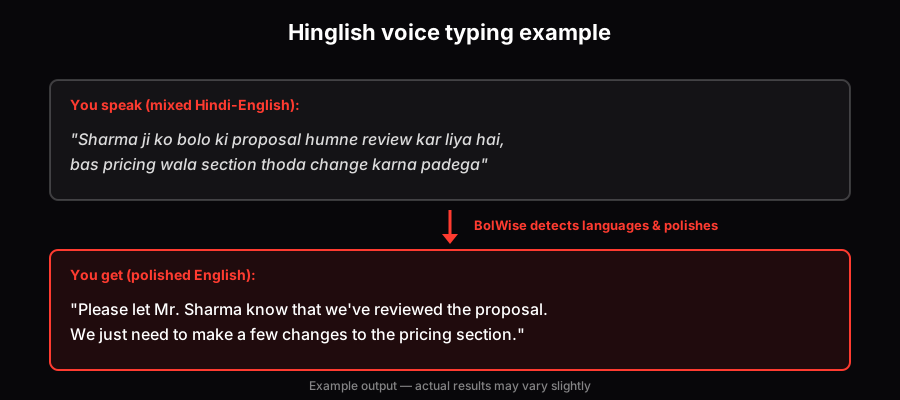
Example: Hinglish input automatically becomes polished English — actual output may vary slightly
Can I speak English and get Hindi text?
Yes. Translation works both ways. Set a Mode's Translate to to Hindi, speak in English or Hinglish, and get Hindi text. That helps when you're writing to someone who prefers Hindi, preparing a notice for staff, or replying to a customer in their language.
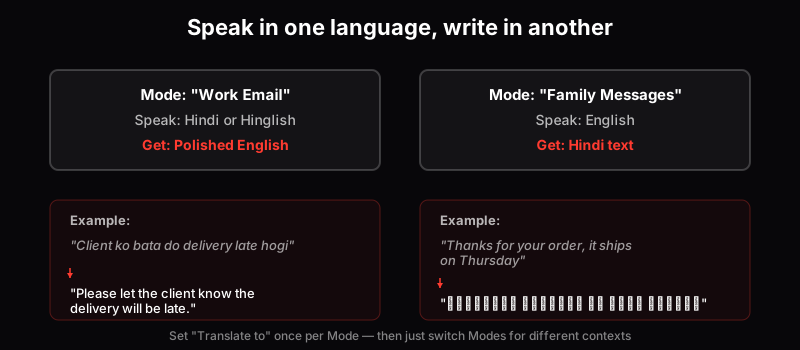
Set "Translate to" once per Mode — switch Modes to write in different languages
It isn't limited to Hindi and English either. You can speak Hindi and write in German for a supplier, or speak English and write in Spanish for a client.
What if I want exactly what I said?
Sometimes you don't want polishing. You want your words as they were, for meeting notes, a quote, or a casual chat. Choose As spoken and BolWise gives you a word-for-word version without rewriting it.
Who is Hinglish voice typing on a laptop useful for?
Anyone who types a lot and thinks in more than one language:
- Sales teams writing client follow-ups after calls that happened in Hinglish.
- Marketers turning spoken ideas into posts and briefs.
- Lawyers and office staff drafting letters and notes in formal English or Hindi.
- Founders and managers answering email between meetings.
- Students and teachers writing assignments and notes.
- Anyone who finds typing in English slow, even though they speak it well.
How do I set up Hinglish voice typing on Mac or Windows?
- Download BolWise from bolwise.com and install it.
- Allow microphone access, and on Mac, accessibility access so BolWise can paste into other apps.
- Select Hindi & English language in Languages section.
- Pick or create a Mode. For example:
- "Chat Message OR Email": polished, Translate to English.
- "Family": Translate to Hindi.
- "Notes": As spoken.
- Try it in a real app. Open an email draft, hold the key and speak the way you normally would.
Tips for better results with Hindi-English mixed dictation
- Speak in full thoughts. Say a whole sentence or two before releasing. Short fragments give the polish step less to work with.
- Use a decent microphone. A headset or your laptop mic in a quiet room is fine. A noisy café is harder for any tool.
- Say names clearly. Names of people and companies are where most errors happen in any language.
- Use the right Mode. A formal email Mode and a chat Mode give different results from the same words.
- Check before sending. Dictation saves time, but glance over important messages.
What about privacy?
Your dictation history stays on your device, and your audio isn't kept on BolWise servers. If you work with client information, that matters.
Is there a Hinglish voice typing app for phones?
BolWise isn't on phones yet. It's built for the laptop, where most long writing happens: emails, documents and reports. On a phone, your keyboard's built-in voice typing is the simplest option for now.
Frequently asked questions
Can I do Hinglish voice typing on a laptop?
Yes. With BolWise on macOS 13+ or Windows 10/11 you hold the key, speak Hindi and English mixed together, and polished text is pasted wherever your cursor is.
Do I have to choose Hindi or English before I speak?
No. BolWise detects the language automatically, even when you switch between Hindi and English in the same sentence.
Can I speak in Hindi and get English text?
Yes. Set 'Translate to' English on a Mode and speak in Hindi or Hinglish. It works the other way too: speak English and get Hindi.
Can I keep exactly what I said instead of a cleaned-up version?
Yes. Choose the 'As spoken' option to get your words word for word.
Is my voice stored?
Your history stays on your device, and your audio isn't kept on BolWise servers.
Is there a Hinglish voice typing app for phones from BolWise?
Not yet. BolWise is a desktop app for Mac and Windows.
Speak the way you think, in Hindi, English or both, and get polished writing in any app on your Mac or Windows laptop.
30 minutes over 14 days, no card